
Frequently Asked Technical Questions
And if you do not find what you are looking for, do not hesitate to contact us, we will be happy to help you.
Cameras
My equipment is not working, what should I do?
You must access to Process an RMA/DOA RMA/DOA. It is essential to attach the purchase invoice of the equipment along with a detailed description of the failure. You can add a video if you wish. Once received, our support team will contact you to solve the problem.
How can I verify that I have access to the webcam?
Executing the PING command on your PC.
First check the IP address of your camera. It is displayed through the HDMI or SDI output of the equipment when you turn it on.
In the Windows browser, run the "cmd" application.
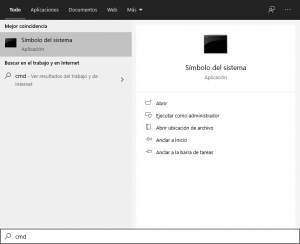
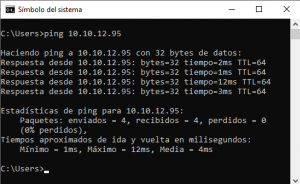
The command prompt will open and you will need to enter ping followed by the IP address of your camera and press Enter. If the command displays an image similar to the one below, there is IP communication with the camera.
How can I configure my webcam? Default IP
First check that your computer is on the same network segment as the camera.
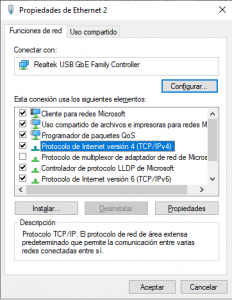
To do this, go to the local area connection properties window and select "Internet Protocol version 4 (TCP/IPv4)" > Properties.
Then under "Advanced" > Add, enter an IP - and its network mask - that is in the same range as that of the camera. For example: (192.168.5.12 / 255.255.255.255.0).
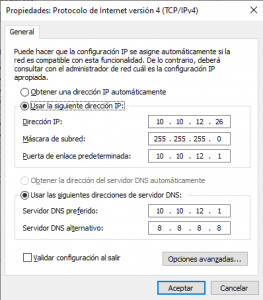

NOTE: The added IP cannot coincide with another IP assigned to another device in the same network. It is recommended to check beforehand that this IP is not in use.
Once these steps have been carried out, it would be advisable to check that the PC and the camera are connected by PING.
Once we have a direct connection with the camera we have to enter the IP of the camera in a web browser and when requesting the default credentials are the following:
User: admin
Password: admin
Camera default IPS
MODEL | IP Address |
Cute 12/30X | Cute 12/20X AI | Cute 4K AI | Broadcaster AI | Broadcaster AI | 192.168.5.163 |
Cute 4K Total | Broadcaster | 192.168.100.82 |
Broadcaster 30X | Broadcaster Bullet | 192.168.100.88 |
What parameters do I need to control my camera by VISCA or RS-232?
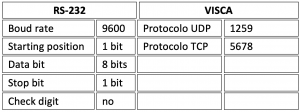
Models using UDP protocol: Cute 12X, Cute 30X
Models using the TCP protocol: Cute 4K Total, Broadcasters
My camera does not output the video at the resolution I want, what should I do (SYSTEM SELECT).
Check that the selector is indicating the required resolution (a little wheel on the back of the camera).
VIDEO SYSTEM | ||||
0 | 1080P60 | 8 | 720P30 | |
1 | 1080P50 | 9 | 720P25 | |
2 | 1080i60 | A | 1080P59.94 | |
3 | 1080i50 | B | 1080i59.94 | |
4 | 720P60 | C | 1080P29.97 | |
5 | 720P50 | D | 576i | |
6 | 1080P30 | E | 480i | |
7 | 1080P25 | F | 720P59.94 | |
Is there anything physically wrong with my camera?
The following are some aspects that could indicate that the camera is faulty and an RMA/DOA needs to be processed:
- When the camera is turned on, it does not perform the complete self-test. (The camera must rotate to one side and the other to finally be in the centered position (preset 0).
- An error message appears in the displayed video.
- When the image it provides is not stable or sharp.
What are the commands I should use to control the camera via IP/H232?
In the specific section of your camera in this Support page (below) you will find the specific commands. Both for H232 and Visca.
Problems with audio, stream or zooming in and out
Update your camera driver or firmware.
How to output image via VLC over Ethernet (Multicast)
Open VLC, Media > Open Network Location:
Rtsp://<dirección IP>:554/1

The C-Pro 12X camera loses connectivity via Ethernet after 2 hours of use.
You need to update the firmware. In this LINK you will download a ZIP file with the firmware and instructions on how to do it.
IMPORTANT: THIS ONLY APPLIES for Cute 12X cameras with MCU Version 3.2.x. If your camera has an MCU version 3.1.4 it does not apply.
How can I upgrade myTeam TP1 to the latest version?
In the TP1 menu, -we recommend that it be via web- (easier and more practical):
Configuration > Other > Update:
- Enable the options:
* Activate update
* Check new version at startup
* Forcing an update
> Select mode: HTTP Server.
> URL: http://update.laiatech.com/TP1
Check the new version now.

After clicking on Save, the computer will be updated and restarted in a few minutes.
How do I know what each button on my camera's remote control is for?
To find out what each button on your camera's remote control is for, download our "Camera Remote Controls Manual" PDF, search for your camera model and view detailed instructions.
audio equipment
My equipment is not working, what should I do?
You must access to Process an RMA/DOA RMA/DOA. It is essential to attach the purchase invoice of the equipment along with a detailed description of the failure. You can add a video if you wish. Once received, our support team will contact you to solve the problem.
How do I wirelessly charge the microphones of the T Pod Quad 22?
To charge the T Pod Quad 22 microphones wirelessly, follow these steps:
- Make sure that the charger supports the Qi standard, which is the wireless charging protocol used by the device. The charger must provide at least 5V/500 mA.
- Place the microphone on the charging base.
- Note that wireless charging is only activated when the battery is low.
- After approximately 10 seconds, a red light will illuminate, indicating that the microphone is charging properly.
- When charging is complete, the red light will automatically turn off.
Compatibility
Which cameras are compatible with Barco ClickShare Conference?
Laia cameras that are compatible with Barco's ClickShare Conference wireless communication system are:
- B-Hybrid Series: Laia B-Hybrid Pro , Laia B-Hybrid AI*, and B-Hybrid UP
- C-Pro Series: Laia C-Pro , Laia Cute 12x/30x,Laia C-ProVoiceTrack,Laia C-Pro Total and Laia C-Pro UP Pro
- Broadcaster Family: Laia Broadcaster Total
Barco's ClickShare Conference wireless communication ensures a total collaboration experience where you can start meeting and sharing data with a single click. Plug in your Laia equipment, connect ClickShare and start your meetings: It's that simple!
You can also see which Laia models are compatible with ClickShare Conference on the official official Barco website.
Which products are compatible with Biamp Modena?
Laia cameras that are compatible with Biamp's Modena wireless communication system are:
- B-Hybrid Series: Laia B-Hybrid Pro , Laia B-Hybrid AI and Business & Home UP
- C-Pro Series: Laia Cute 4K Ai 2021,Laia C-Pro , Laia Cute 12x/30x, Laia Cute 4K Total, and Laia C-Pro UP Pro
- Broadcaster Family: Laia Broadcaster Total
Biamp's Modena wireless communication ensures a total collaboration experience where you can start meeting and sharing data with a single click.
You can also see which Laia models are compatible with Biamp's Modena on Biamp's official Biamp website.
USB cable options compatible with Laia equipment
Attached are some cables that have been tested by our technical department, in case they help you in your choice. It does not mean that only these work, but we are sure that they are an option that works correctly with our equipment.
- 20m Micro Connect Premium USB Type-A Male to Type-C Male Active Optical Cable: We have tested this cable with the following devices to ensure compatibility: B-Hybrid AI; B-Hybrid Pro 4K AI; B-Hybrid Pro FHD; C-Pro Up Pro. It works perfectly both when connected directly to a Windows PC and cameras, and when connected via a USB hub. For Macs, it works perfectly when using Apple’s original USB-C to USB-A adapter.
- VIVOLINK USB-C Male to USB-A Male Cable, 10 m: We have connected this cable to the following devices and verified its compatibility: B-Hybrid AI; B-Hybrid Pro 4K AI; B-Hybrid Pro FHD; C-Pro Up Pro. It works perfectly both when connecting the cable directly to a Windows PC and the cameras, and when using a USB hub. For Macs, it works perfectly when using Apple’s original USB-C to USB-A adapter.
- VIVOLINK USB 3.0 Active USB A Male to USB A Female Cable, 15m: We have tested this cable with the following devices to ensure compatibility: B-Hybrid AI; B-Hybrid Pro 4K AI; B-Hybrid Pro FHD; C-Pro Up Pro; C-Pro AI. We used the original cable from each camera and connected it to the female connector on this cable. It works perfectly both when connecting the cable directly to a Windows PC and the cameras, and when using a USB hub. This cable has a USB A male connector for Power Supply. The cable works perfectly, Power Supply not you use the USB A Power Supply . For Macs, using Apple’s original USB-C to USB-A adapter works perfectly. There is no need to use the USB-A Power Supply. We connected this same cable to a C-Pro camera, linking the camera’s original USB cable to this cable and then to the myTeam device, and we performed the same test using the original USB cable from the C-Pro Up Pro camera; the myTeam detected the device without any issues. We established a connection via Teams using both a Windows PC and a Mac, utilizing myTeam to share the devices. Everything worked fine.
- VIVOLINK 15m USB-C Male to USB-A Male Cable: We have tested this cable with the following devices to ensure compatibility: B-Hybrid AI; B-Hybrid Pro 4K AI; B-Hybrid Pro FHD; C-Pro Up Pro. It works perfectly both when connected directly to a Windows PC and cameras, and when connected via a USB hub. This cable contains internal electronics. For Macs, it works perfectly when using Apple’s original USB-C to USB-A adapter.
- VIVOLINK USB 3.0 Active USB 3.0 Cable USB A male to USB B male 15 m: Among our products, this cable has been connected and tested for compatibility with the C-Pro 12X AI, 20X AI and 4KAI, as well as the Broadcaster 12X AI, 20X AI and 4KAI cameras. Both in direct connection of the cable with the Windows PC and the cameras as well as through a USB Hub it works perfectly. This cable has a USB A male for Power Supply. The cable works perfectly, whether we use the USB A for Power Supply or not. In the case of MAC using the original Apple USB C to USB A adapter works perfectly. There is no need to use Power Supply USB A. We have connected this cable to a C-Pro 12XAI camera and myTeam Sharer equipment and myTeam Sharer equipment detected the device without any problem. We have made a connection via Teams with a Windows PC as a MAC, using myTeam Sharer to share the devices. Everything was fine.
Which interactive displays are compatible with Laia devices?
Interactive displays that are compatible with Laia cameras are designed for greater flexibility and ease of use when combining your products. Creating customized solutions that meet your specific needs.
Compatibility with interactive displays of:
Other issues
I cannot use myTeam Sharer's virtual camera after upgrading to macOS Sonoma 14.1.
As of macOS Sonoma 14.1, cameras and video output devices that do not use modern system extensions will not be available for use unless the legacy configuration is restored. To resolve this, follow the instructions in this document:
Virtual video output configuration for macOS Sonoma 14.1 or later >>
How can I create presets in SaBbio?
1.- Configure the IP remote control of the camera as follows:
MENU > Channel > local > # SDI / HDMI (select the appropriate one) > PTZ > Settings
Protocol: VISCA
Address Code. 1
Camera IP: <IP Address>
Camera Port: 1259
2.- Configure the presets you want.